iPhone location journals
Whereday and Google Timeline on iPhone
Choose a location journal by the way you record, review, and keep a copy of your own history.
Whereday is currently listed as iso.me in the U.S. App Store.
An alternative for your next recorded day
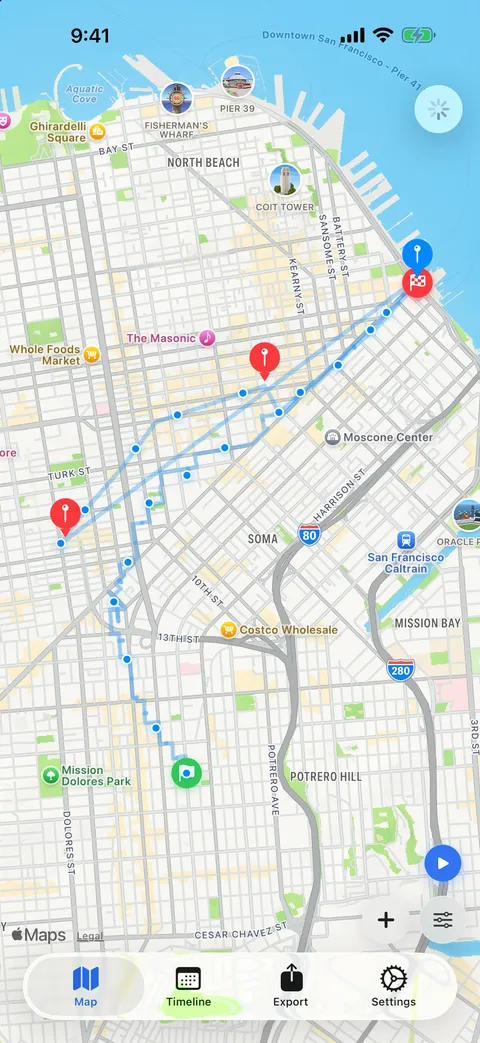
Whereday is an iPhone location journal for people who want to record their own visits and routes without a Google account. Recording is free. A one-time purchase unlocks file exports, scheduled exports, and webhooks.
Google Timeline already keeps history on your device and offers encrypted backup. Choose based on the recording and export workflow you need. Starting Whereday does not move your old Timeline archive.
Start with the history you need to keep
- Find or move your existing Google history: keep its archive and check Timeline export and backup first. Whereday 1.7.16 cannot import Google Timeline files.
- Record future visits and routes without another account: try Whereday’s free recording, then inspect the saved points before relying on it.
- Use new records in a map, notes, or your own server: review the checked export examples before paying for exports. File compatibility and restoration are separate questions.
Compare the everyday workflow
| Question | Whereday | Google Timeline |
|---|---|---|
| Account | No Whereday account. | Google account. |
| Storage and backup | Local journal. Keep supported export files for restoration; no built-in cloud sync. | Device history, with optional encrypted server backup. |
| Recording | Start and Stop control GPS recording and visit monitoring together. Always permission allows background recording. | Visits and routes collected with Timeline enabled. |
| Files | JSON, CSV, Markdown, GPX, KML, GeoJSON, OwnTracks, and Overland. Paid export; free preview. | Location-history JSON export. |
| Moving existing history | App Store 1.7.16 imports Whereday JSON, CSV, and Markdown files. No Google Timeline import in that build. | Timeline backup can transfer history to another device. |
| Payment | Free recording. US lifetime unlock: $19.99 Individual or $39.99 Family. Regional prices vary. | Timeline is available within Google Maps. |
Google features: Google’s Timeline help for iPhone, checked October 26, 2026. Whereday features are described in its product documentation. This comparison is written by Whereday’s developer.
When Whereday fits
- You want a personal route and visit journal without creating another account.
- You want to choose when recording starts and stops, review outings, and replay recorded routes.
- You need GPX for a route viewer, CSV for a spreadsheet, or Markdown for a readable archive.
- You want an optional webhook workflow alongside a local journal.
Use the private location journal guide to set up your first recording. Start enables detailed GPS as well as visit monitoring; there is no separate passive visit-only switch. Permissions, GPS conditions, and battery can affect the record.
When keeping Google Timeline makes sense
Keep Timeline if its existing archive, Maps workflow, and backup meet your needs. Whereday is not a drop-in replacement for importing that archive. Review Google’s current settings and backup instructions before changing your setup.
If you want to try Whereday, record a short session and inspect it before relying on it for a longer trip. You can evaluate the free recording features before buying export access.
Preserve your existing history first
Google’s downloadable archive and its device-transfer backup serve different purposes. Keep the archive before changing your setup; check backup separately if you need history on another device.
- In Google Maps on iPhone, open your profile picture or initial, then Settings → Location & Privacy → Export Timeline data.
- Choose Save to Files, select a destination, and save
location-history.json. Keep that original file separately. - For Google’s device-transfer backup, open Your Timeline → cloud icon and check Backup. Google says backup requires auto-delete to be off and changes can take a few days to appear.
These steps follow Google’s iPhone export and backup instructions, checked October 26, 2026. Google notes that settings are being updated, so labels may differ. No Google device-transfer test is claimed here.
App Store 1.7.16 cannot import that Google archive. A future importer still cannot reconstruct records missing from the file. An exported file is not proof of a successful restore.
For existing Apple or Google records, start with the iPhone history guide. For new Whereday routes, follow the GPX export walkthrough and check export and restore compatibility. A GPX file is useful for drawing a route elsewhere, but it cannot be imported into Whereday. Keep supported visit and point exports for records you want to restore later.
Check the output before choosing an export workflow
These examples use invented location records. They show specific file and receiver behavior, with the remaining recording and transfer limits stated in each guide.
- GPX in gpx.studio: five points from Whereday’s serializer opened as two segments. This checks synthetic file compatibility, not a completed physical recording.
- Markdown in Obsidian: a native export with two invented visits opened in a temporary desktop vault, with an optional checked Maps plugin example. Mobile and scheduled delivery need separate checks.
- Overland delivery to Dawarich: three invented points persisted after the local receiver and database restarted. Production HTTPS and unattended delivery remain unverified.
For returning data to Whereday, read the backup and restore guide. In the checked 1.7.16 import, nearby visits reconciled while repeating the point file appended its points again. Keep the originals and verify destination counts before repeating an import.
Understand what local storage means
Whereday does not operate a server archive of your location history. Apple services handle place names and map features; first-party onboarding and purchase telemetry is enabled by default and excludes your location records. Optional webhooks deliver records to an endpoint you configure. Exported copies follow the storage rules of the destination you choose.
Read the privacy policy, recording controls, and current pricing before choosing a workflow.
Record your next route.
Keep a copy you can use.
Start with free tracking, then decide whether you need the optional export unlock.
Download free for iPhone