Practical iPhone guides
How to back up and restore your Whereday location history
Export Visits and Points separately as Whereday JSON, check the saved files, and keep the originals when importing on another iPhone.
Keep the files before changing phones
To keep a restorable copy of Whereday location history, export Visits and Points separately as Whereday JSON files. Include the dates and fields you need, confirm both files exist, and retain the originals when importing them on another iPhone.
Recording, preview, and importing supported files are free. Writing export files requires the optional one-time unlock. This guide covers Whereday records; it is not a way to restore Apple Maps or Google Timeline archives.
Choose records, not just a file extension
A GPX track can be useful in a map viewer without being a journal backup. Whereday’s importer accepts supported Whereday visit and point exports in JSON, CSV, or Markdown. It does not accept every file that happens to have one of those extensions.
| Your goal | What to save | What to verify |
|---|---|---|
| Restore visit records | Visits exported as Whereday JSON | Dates, coordinates, names, and the optional fields you need |
| Restore the recorded path | Points exported as Whereday JSON | The whole date range and required point fields |
| Open a route elsewhere | GPX, KML, or GeoJSON as appropriate for the viewer | Viewer compatibility; these formats cannot be imported into Whereday |
| Keep every app preference or edit | A record of important settings alongside the exported files | Do not assume an import restores settings, photo associations, or edited outing summaries |
For restoration, choose Visits and Points individually. An outing summary is a different export from the visit and point records the importer expects. The export reference lists supported formats and fields.
1. Export your visits
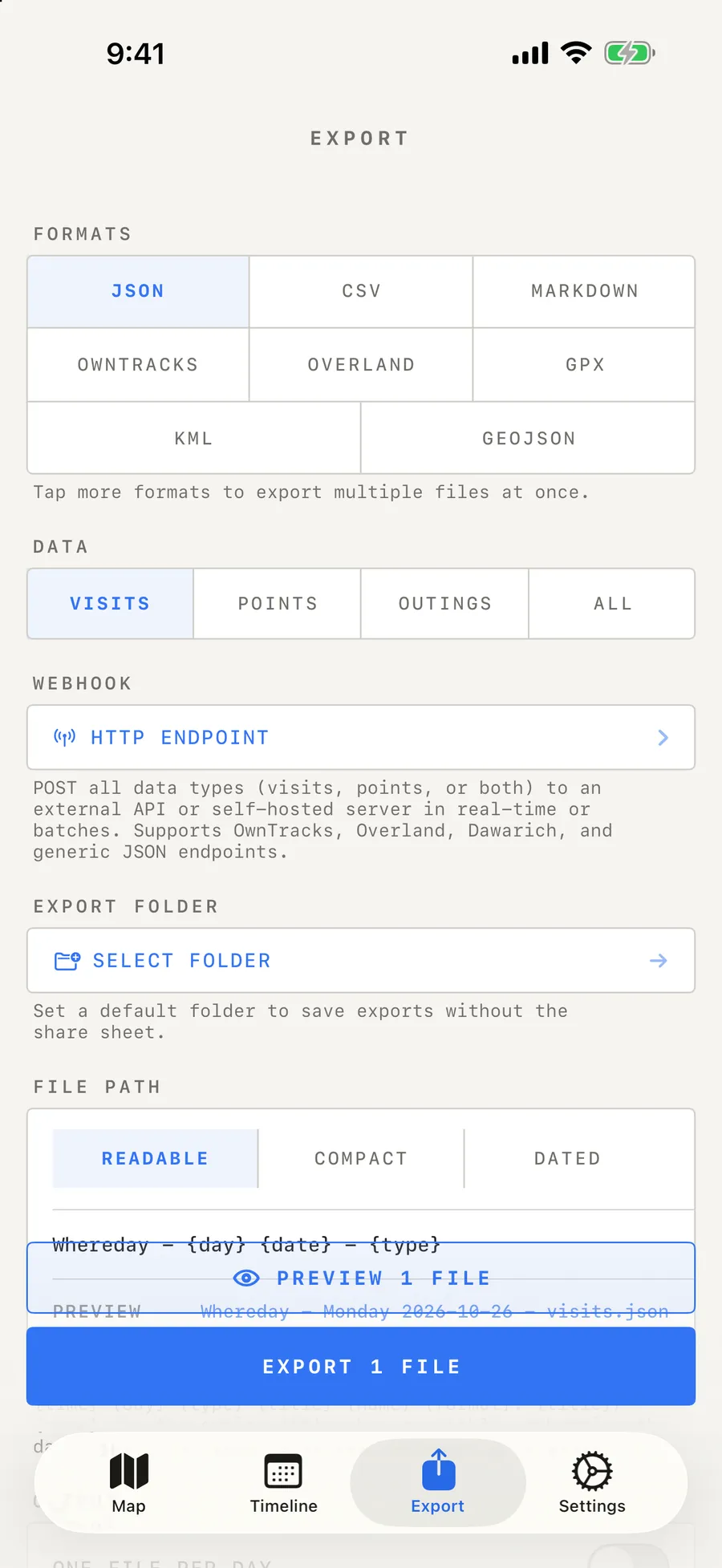
- Open Export and select Visits.
- Select JSON. Deselect other formats if you only want this file.
- Choose the date range. For the full available visit archive, choose all history rather than Today or a recent period.
- Review time of day, minimum duration, and Only completed visits. Visit selection uses arrival time, so a stay arriving before the selected range can be excluded even if it ended inside it.
- Keep coordinates and the other fields you want to restore. Open Preview and check representative dates.
- Export to a folder you control. Note whether the settings produce one file or several dated files.
Then export your route points
Repeat the process with Points and JSON. Use the intended full date range and review its time of day, maximum accuracy, and GPS glitch filters too. Keep both sets of files. Exporting visits alone does not preserve all of the GPS points between stops.
If Preview omits expected records, follow the export filter diagnosis before writing or importing another copy.
Stop an active recording before taking a final transfer copy if you want the session to be finished first. New records captured after an export will not be in that earlier file.
2. Confirm what was saved
Open Files and find the destination you selected. Confirm that you have a visit export and a point export, not just two copies of one type. If you chose daily splitting, retain every file needed for the period.
- Check the filenames and that the files are not empty.
- Use Preview or a text viewer to check early and recent dates from the intended archive.
- Keep an additional copy somewhere you will still be able to reach after changing phones.
- Preserve the originals while transferring or importing them. Check the destination copy before relying on it.
A folder stored only on the old phone does not help if you erase that phone before transferring the files. If you choose a cloud folder or another service, that exported copy follows the destination’s storage and privacy rules. Location records can reveal detailed movements, so choose the destination deliberately.
Inspect the two JSON structures before using your own files
These examples contain invented coordinates near zero and fixed dates on January 1, 2000. They are documentation fixtures, not a real trip or captured app exports:
- Download the synthetic Visits JSON: two named stops with arrival and departure times.
- Download the synthetic Points JSON: three timestamped locations matching the synthetic GPX example.
In iPhone Safari, the sample links download JSON files. If your browser opens the JSON as text instead, return to this page, touch and hold the link, and choose Download Linked File. Find the saved file in Files before opening Whereday’s importer. Saving a screenshot or a copy of this article does not save the JSON records.
{
  "visits": [{
    "latitude": 0.0,
    "longitude": 0.0,
    "arrivedAt": "2000-01-01T11:45:00Z",
    "departedAt": "2000-01-01T12:00:00Z"
  }]
}
The visit file has a visits array; the route file has a points array. Visits need coordinates and an arrival time. Points need coordinates and a supported timestamp. A valid JSON file can still be unsuitable for import if those fields are missing.
Both downloadable fixtures were parsed with Whereday’s current Swift importer: two visits and three points, with their expected names, coordinates, and times. Parsing checks the file structure. The separate released-source disk check below shows how saved records can differ from these parsed counts.
Open the samples as text to inspect them. Importing them into your everyday journal would add invented records dated January 1, 2000. They are not needed to back up your own data.
Checked example: imported counts can differ from saved records
We passed these synthetic JSON records through the actual 1.7.16 (46) import method into a new on-disk journal in an isolated iOS 26.5 simulator test. We then opened the same store in a fresh data container and re-exported the saved records as JSON. The input contains two nearby stops, separated by two minutes, and three route points.
| Check | Visits | Route points |
|---|---|---|
| Records in the original files | 2 | 3 |
| Reported by the first import | 2 | 3 |
| Saved after reopening the store | 1 combined visit | 3 |
| Records in JSON re-export | 1 | 3 |
| Saved after importing both files again | 1 combined visit | 6, including repeated points |
The released app reconciles nearby visits after importing. In this example it retained Synthetic stop A at the first stop’s coordinates, with arrival at 11:45 UTC and departure at 12:17 UTC on January 1, 2000. It combined the two stops instead of preserving a separate stop B. The three point timestamps and coordinates remained in the saved route.
This is why you should retain the original files and compare individual records as well as totals. An import result counts the records read, not necessarily the final number of visits. Visit reconciliation is separate from a duplicate-safe archive import: repeating the point file added its three points again.
Checked October 26, 2026 in a Debug rebuild of the verified release source, using invented records and a separate disk store. The native import, save, store reopening, and JSON re-export were tested. This was not the App Store binary, a file-picker test, an app-process restart, or a transfer between physical phones. The original samples remain unchanged.
File selection and a full app restart
In a separate check, the same release-source app started with zero visits and zero points in its isolated simulator journal. We selected synthetic-visits.json through Settings → Import File and the system file picker. The alert reported Imported 2 visits, while Settings showed one saved visit after reconciliation.
We then downloaded synthetic-points.json in Safari and selected it through the picker. Its alert reported Imported 3 points. After terminating and relaunching the app, Settings still showed 1 visit and 3 points. This checks the file-selection, import, save, and app-restart path separately from the native field and re-export checks above.
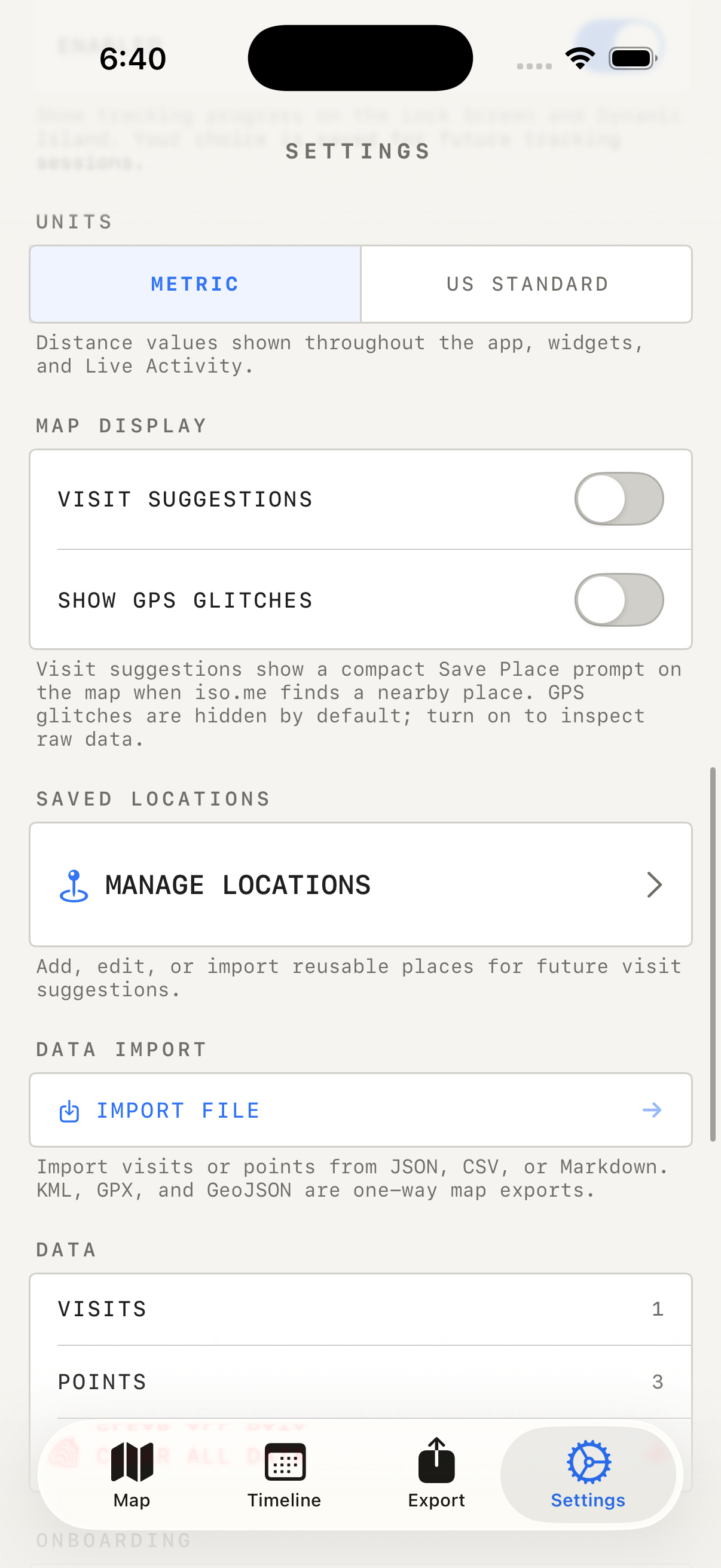
Checked October 26, 2026 on iOS 26.5 with a Debug rebuild of 1.7.16 (46) and a separate app identity. Settings and import code were unchanged from the verified release source. This was not the App Store binary, a purchase test, a captured source-phone export, or a transfer between physical phones.
3. Import the supported files on the destination
- Make the saved visit and point files available in Files on the destination iPhone.
- Open Whereday, then choose Settings → Import file. Allow the system file picker to finish opening; a later opening in the simulator check took about seven seconds.
- Select a supported Whereday file and read the import result. Repeat for the other data type and any additional dated files.
- Check several dates on Map and Timeline. Look for both visits and route points, including the earliest and most recent records you expected.
- Close and reopen Whereday, then check the same dates again. Confirm the imported records remain before erasing or retiring the original phone.
- Keep your originals until you have checked the result. An import cannot restore records that were excluded from the export.
In App Store 1.7.16, import adds records without the newer preview and duplicate checks. Nearby visits can still be combined by visit reconciliation after import, while repeated points can be added again. Import each intended file once and inspect the result before retrying. If a file fails, retain it and read the reported format or field error before editing it. A JSON archive from Google Timeline has a different structure and is not a supported Whereday restore file.
Check the destination against the original files
- Before importing: note the visit and point totals in Settings → Data. A phone that already has records is a merge situation, not a clean destination.
- After each file: read the import result and check the matching record type. A successful Visits import does not prove that Points were restored.
- Check details: compare names, notes, dates, and coordinates for a few records with the saved JSON. A total alone cannot show that the right date range was selected.
- Check the display range: an imported record outside Today will not appear in a Today view. Select its actual date or an all-history view before importing again.
For these documentation fixtures, the checked release-source import reported two visits and three points, but saved one combined visit and three points. Use the stage-by-stage results above when inspecting the example. Keep invented records out of your everyday journal.
Restore Purchases is separate. It restores an eligible paid entitlement through the App Store; it does not download a copy of your location history. Whereday does not provide an account-based server archive or built-in iCloud journal sync.
Scheduled exports are ongoing copies, not an initial full archive
Auto Export writes the current local day to the chosen folder. It can help keep future records, but turning it on today does not by itself back up every earlier day. Make your initial full exports separately.
Background execution is best effort. Check the latest saved file, use Run Now or open the app if a scheduled copy is overdue, and confirm the records you need are present. A configured schedule is not proof that the last file was written successfully.
A run after midnight selects the new day and does not repair yesterday’s file. A once-daily run also saves only the day up to its run time. Use a separate manual export for a prior date that needs a complete copy. See the checked automatic-export examples for CSV boundary repeats, visit edits, and midnight behavior.
Need a readable note or a route file?
For a readable visit table, follow the Markdown-to-Obsidian workflow. Keep a separate supported backup when omitting fields for readability.
Follow the GPX route walkthrough for a path you want to open in another tool. If you are still trying to find old Apple or Google records, start with how to view your iPhone location history. For the recording setup, use the private location journal guide.
Keep the records.
Check the copy.
Try free recording and export preview. See current pricing for the optional file-export unlock.
Download free for iPhoneReviewed October 26, 2026 against Whereday’s export, import, and scheduling behavior, including a 1.7.16 release-source disk import and JSON re-export check. Importing restores supported records; it is not a promise to reproduce every app setting or edited view.