Practical iPhone guides
How to see your location history on iPhone
Find the app and date that hold your saved visits, distinguish iPhone location settings from recorded history, and check existing copies before changing your setup.
Check the recorder you already used
For saved iPhone location history, open Maps → Places → Visited Places, where available, or Google Maps → profile picture → Your Timeline and select a date. In Whereday, open Timeline. Start with the app that recorded the day; these histories are separate.
This guide covers your own visits and routes. If you want a record of future trips, you can start one in Whereday, but installing it cannot reconstruct earlier movement.
Which history are you looking for?
| What you used | Where to look | What to check |
|---|---|---|
| Apple Maps | Places → Visited Places, where available | Whether the feature was enabled and the visit is retained |
| Significant Locations setting | Settings → Privacy & Security → Location Services → System Services | A location-related Maps setting; check the recorder for the history you need |
| Google Maps | Profile picture → Your Timeline | The account, selected device history, and date |
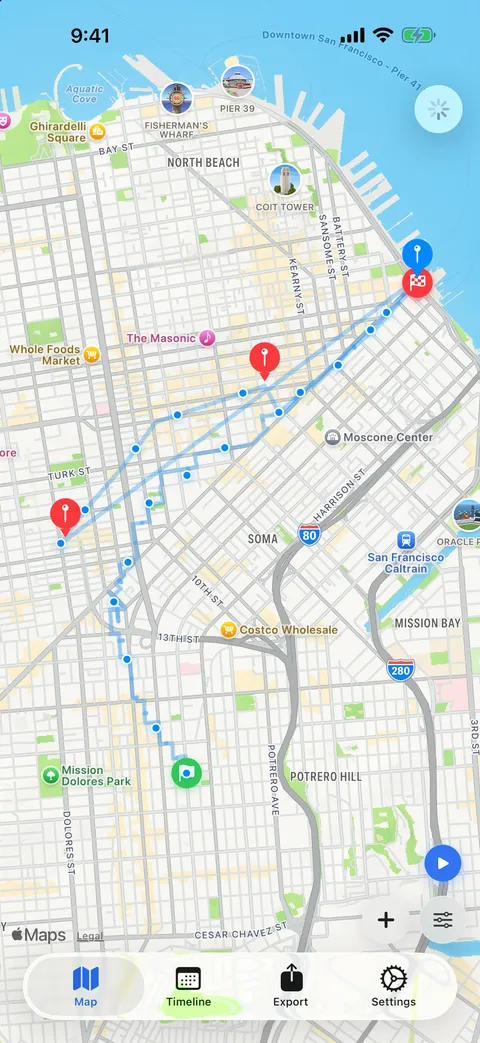
| Whereday | Timeline or the date range on Map | Whether tracking was enabled for that period |
| No enabled recorder | There may be no route record to open | Start a new recording before the next trip |
Directions you requested, places you searched for, and a recorded visit are different kinds of information. A search for a restaurant does not by itself establish when you arrived or how you travelled there.
Find visited places in Apple Maps
- Open Maps, then open Places.
- Choose Visited Places, if it is available.
- Search for a place or filter by date, category, or city. Use All Visits to browse.
Visited Places depends on prior setup and regional availability. In Apple’s iOS 26 instructions, check Settings → Apps → Maps → Location for Precise Location and Visited Places. Also check Location Services and Significant Locations & Routes under System Services. Follow Apple’s versioned instructions when labels differ.
For older entries, review Keep Visits at the bottom of Visited Places. A retention choice may explain a missing date; changing it does not establish that an older visit still exists.
Find Significant Locations in iPhone Settings
Open Settings → Privacy & Security → Location Services → System Services → Significant Locations & Routes. Some versions use the shorter label Significant Locations.
Apple documents this as a setting used for location-related Maps features. It is separate from the Visited Places list. For the records in this guide, return to the app that saved them. See Apple’s Maps location settings.
Open Google Maps Timeline
- Open Google Maps → profile picture or initial → Your Timeline.
- Use the calendar to select the day. Confirm the account and device whose history you need.
Google’s iPhone guide describes optional encrypted backup and a device selector under Timeline’s cloud icon. A backup can be imported into Google Maps on another device; inspect that device’s date range afterwards. Recent changes can take days to reach a backup.
For an independent file, use Settings → Location & Privacy → Export Timeline data → Save to Files. Google names the export location-history.json. Follow Google’s current iPhone instructions if menus differ.
Keep the archive separately. The verified App Store 1.7.16 build of Whereday does not import Google Timeline files; see the Google Timeline comparison before switching.
Keep the records before changing the setup
- Check the old device and the date you need before moving to a different phone or account.
- Review retention and backup settings before clearing history. Google warns that deleting Maps or factory-resetting the phone removes device Timeline data; verify an available backup or export first.
- Keep the original archive until you have checked the destination’s actual records. A backup switch or a successful file download is not proof of a complete copy.
For Whereday records, follow the backup and restore checklist. Each app’s backup belongs to that app’s workflow; similarly named files are not automatically interchangeable.
Why a day can be empty
First check the date, account, and app rather than assuming the history is gone. A map showing today may simply be the wrong view for last month’s trip. In Whereday, use Timeline’s date controls or change the Map date range.
- Recording was off. A location permission lets an app request locations; it is not proof that the app recorded that day.
- The record was removed. Look for retained files or supported backups before clearing more data or replacing a device.
- The device missed part of the trip. Permission changes, a stopped session, GPS conditions, or a flat battery can leave gaps.
- A visit has not appeared. Detected arrivals and departures are not an immediate check-in at every stop. A route can contain points even when a visit is missing.
For an incomplete Whereday day, use the missing visits and route points checklist to distinguish recording, display, Watch sync, and export issues.
Photos, receipts, and calendar entries may help you remember a day, but they are not a recovered GPS trace. A newly installed recorder cannot recreate coordinates it never captured.
Record your next day with Whereday
If you want a separate journal without an Whereday account, try a short recording before a longer trip:
- Install Whereday and complete permission setup. Always location access allows recording in the background.
- On Map, tap the recording control before you leave. Start enables GPS recording and visit monitoring together.
- Stop when you finish. Open Timeline, choose the day, and open the outing. Check its Points count, Path, and times; a saved outing alone does not prove a GPS route was captured.
- If you need a portable route file, follow the iPhone route and GPX guide.
Recording and reviewing your journal are free. Writing export files requires the optional one-time unlock; preview is free. Read the setup walkthrough for permissions, battery controls, and keeping supported copies.
Core records are stored on your phone. Apple services supply place names and map features; default-on first-party onboarding telemetry excludes location records. Optional webhooks send records to your chosen endpoint. The privacy policy explains those boundaries.
Common location-history questions
Can a new app recover a trip from before it was installed?
A new Whereday installation cannot reconstruct GPS points it never recorded. Check the original recorder and any supported retained files. Photos or calendar entries can help you remember a day, but they are not a recovered GPS path.
Does a saved place prove that I visited it?
No. In Whereday, a saved location is a reusable name and pin for future matching. It can exist without a visit. A manually added visit records the details you enter; it is separate from automatically recorded history. The places reference explains those records.
Does location permission mean every trip was recorded?
Permission allows location requests; it does not establish what was saved. Check the day’s actual visits and route points. The checked recording-state example shows an outing with a running timer but no saved GPS points.
Remember your next trip.
Start recording before you go.
Try Whereday’s free recording, then review the route and visits on your iPhone.
Download free for iPhoneReviewed October 26, 2026 against the linked Apple iOS 26 and current Maps guidance, Google’s iPhone Timeline help, and Whereday’s verified release source. Apple and Google steps follow their linked help pages; menus may vary by version and region. The screenshot illustrates Whereday.