Whereday records your own location history while tracking is enabled. Start recording before the part of the day you want to keep, then review the map and Timeline. Installing the app cannot recover routes from before you recorded them. If you already use Google Timeline, compare the two workflows before switching.
These interface examples illustrate the app’s screens; they are not a newly recorded trip. See the checked recording-state example below for what to verify.


Why a private location journal is different
Most people do not need location history because they want another dashboard. They need it because memory is imperfect. Where did we park near the pier? Which route did that walk take? What day did I visit that client site? Which neighborhood did I pass through on the way to dinner? A local journal answers those questions without requiring every coordinate to become part of someone else's infrastructure.
That distinction matters because location data is sensitive. A timeline can reveal your home, routines, work patterns, health visits, travel, religious practice, relationships, and habits. Before turning on any location recorder, ask two questions: who stores the data, and how do I leave with a copy?
Whereday is built around the local-first answer. Your visits and routes are stored on your iPhone for core tracking. There is no Whereday account requirement and no Whereday server-side location archive for your everyday journal. If you enable features that talk to the network, such as readable place-name lookup through Apple's geocoding service or optional webhooks that you configure, review their boundaries. First-party onboarding and purchase telemetry is on by default and excludes location records; the privacy policy lists network requests.
A simple private-journal checklist
Verify your first recording
- Open Whereday and finish setup. Choose Always if you want GPS and visit monitoring to continue in the background; While Using limits when the app can obtain locations. You can revisit this in iOS Settings.
- On the Map tab, tap the play control to start recording. Check that it changes to a red Stop control and that the elapsed time advances. Stop when you finish.
- Open Timeline, select the day, and open the outing. Check its start and end times, Points count, and Path. A timer or an outing row alone does not prove GPS locations were saved.
- For a route you walked, check that its path follows the expected places. Check visits separately: automatic visits need time at a place, so a brief stop may not appear immediately.
- If the result is empty, check location permission, tracking state, and the selected day before relying on a longer recording.
A saved outing can still have no route
In a checked simulator example, Start changed to Stop and the timer advanced. After stopping, Timeline listed one eight-second outing, zero visits, and zero distance. Opening it showed 0 points and “No GPS points were saved for this outing yet.” This verifies the controls and empty-path state, not a successful route recording.
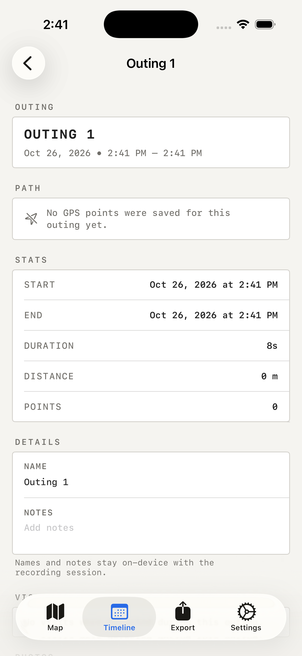
If you see this state, check location permission, the selected date, and whether tracking was on when you moved. Try another short recording where the phone can obtain a location, then inspect the saved points again. A manual visit can add a stop to your journal, but it cannot recreate the missing GPS path. Use the missing-recording checklist for the next checks.
Tracking is free. Writing export files, scheduled exports, and webhooks require the one-time unlock; importing a prior export is free. See current pricing and the setup reference.
Capture visits and routes without turning your life into a feed
A good location journal has two layers: places and paths. Places are the stops you care about: a restaurant, hotel, trailhead, client site, beach, school, or errand. Paths are the routes between them: a hike, commute, road trip, city walk, bike ride, or site visit.
Visits and route points describe different parts of your day, but they share the same recording controls. Start enables visit monitoring, significant location changes, and detailed GPS recording together. Stop ends all three. Always location permission allows recording in the background; visits can arrive later than the route points around them.
- Start tracking before the period you want to remember. Leaving the app installed alone does not record a day.
- Open Timeline after recording to check the date, route, and detected visits. Add or correct a visit if needed.
- Use auto-stop settings as a safety net so precise tracking does not run longer than intended.
Choose a battery tradeoff
Visit monitoring and detailed GPS run together while tracking is on. Stop recording when you finish, or choose an auto-stop timer. High-accuracy GPS uses battery; there is no universal battery-life promise.
- For a walk or trip, start a route deliberately and stop it when finished.
- Try a 25–50 meter distance filter for a longer day, then inspect a short test route. A larger filter can reduce detail; choose it for your use case rather than assuming maximum precision is always better.
- Set an auto-stop timer as a fallback. Check that the timer will not end before a route you intend to keep.
- If history has gaps, check permission and recording state. Battery-saving settings cannot recover points that were never captured.
Use the battery-use checklist to compare settings on your phone. The tracking reference lists the available controls.
Review your map locally first
The map is the fastest way to make the journal feel real. You can scan where you stopped, see route lines, and connect points to the day they happened. This is useful even when you never export anything. The app becomes a private memory instrument: open it, answer a question, close it.
When readable place names help, Whereday can use Apple's geocoding service to turn coordinates into names or addresses. That makes the timeline easier to read, but it is still worth understanding the boundary: coordinate-to-place lookup is a network service governed by Apple's policies, not an Whereday location database.
Your journal is stored locally. Apple services can receive coordinates for place names and map features, and optional webhooks deliver records to your endpoint. Check the privacy policy before choosing a workflow.
Export without locking your memory inside one app
A private journal is only truly yours if you can leave with a copy. Whereday's export workflow is designed for that: visits, route points, or both can be prepared as files you understand and can keep elsewhere.
The most human-readable path is Markdown. The most spreadsheet-friendly path is CSV. The most tool-friendly path is JSON. For maps and location tools, formats such as GPX, KML, and GeoJSON are useful because other software already knows how to draw or process them. The current app also exposes location-history formats such as OwnTracks and Overland for people who already use those ecosystems.
- Use Markdown for a journal-like archive you can read in any notes app.
- Use CSV when you want rows, filters, and spreadsheets.
- Use JSON when you want structured data for scripts or backups.
- Use GPX, KML, or GeoJSON when you want routes and points in mapping tools.
Exported files are powerful because they leave the app boundary. Store them deliberately. If you put them in cloud storage, email them, or import them into another service, that copy follows the privacy rules of the place you sent it.
For a travel summary, Country Days shows the local dates behind each country total, including manual stays for gaps.
Keep a backup you can restore
Export visits and route points as Whereday JSON when your goal is to import those records later. Keep each generated file. GPX and KML are useful for map viewers, but cannot be imported back into Whereday. Do not assume that a file preserves every app setting or outing edit.
- In Export, choose visits, JSON, and the date range you need; export that file. Repeat for route points and keep both files. Review filters and field choices that might exclude required records.
- Use Preview to check the result, then export to a folder you control. Writing the file requires export access; Preview is free.
- Open Files and confirm the JSON exists and contains the expected date range. Keep a separate copy before replacing your phone or deleting Whereday.
- To restore a prior export, open Settings → Import file and select your saved JSON. Review the import result, then check several dates in Timeline and the map before treating recovery as complete.
Keep your original backup during recovery. A filtered export contains only the selected data, and import cannot restore records absent from that file. Follow the full backup and restore checklist, or see export and import for supported formats and automatic exports for scheduled copies.
Content reviewed October 26, 2026 against the product source and documentation. Screenshots illustrate the interface and may show sample data or earlier labels.
Use optional webhooks carefully
Some people want a private journal that also feeds a self-hosted archive, a home server, or a custom automation. Whereday includes webhook settings for users who want to post selected location data to an HTTP endpoint in real time or batches.
This is intentionally an advanced feature. A webhook changes the privacy model because data leaves the phone and lands wherever the endpoint is hosted. That can be exactly what you want if you run the server, understand the logs, and control retention. It is not the same as keeping everything only on the device.
- Prefer self-hosted or trusted endpoints.
- Use authentication for endpoints that support it.
- Send only the data type you need, not everything by default.
- Check the receiving service's backups, logs, and retention policy.
Choose your next task
- Looking for an earlier visit? Check existing iPhone location history before starting a new recording.
- Need a portable path? Record a route and export GPX, with a sample file and troubleshooting.
Build habits that keep the journal useful
The best private archive is boring in the right ways. Check the settings once in a while. Confirm location permission still matches your intent. Export before wiping a device or deleting the app. Keep a periodic backup if the history matters. Delete old data when it no longer serves you.
Also be honest about what a location journal is not. It is not tax advice, legal advice, or a guarantee that every movement was captured perfectly. GPS can be noisy, permissions can change, devices can be offline, and batteries can die. Treat your timeline as a memory and records aid, not as authoritative proof for a situation that needs a professional standard.
Used that way, a private location journal is quietly valuable. It gives you the personal benefits of remembering places and routes while avoiding the default assumption that your location history has to live in a giant remote account forever.
Start with a local journal.
Download Whereday, keep your working location history on your iPhone, and export when you need a portable copy.
Whereday is currently listed as iso.me in the U.S. App Store.