Choose a place or a visit
A saved location is a reusable name, coordinate, optional address, and match radius. It helps name future automatic visits; creating one does not create a visit or record a GPS path. A visit is a journal entry with arrival and departure information.
| Your goal | Use |
|---|---|
| Name a place you will revisit | Settings → Saved Locations → Manage Locations. |
| Fix a stop already in your journal | Open that visit and confirm or correct it. |
| Add a stop from an earlier day | Map → + → Add past visit. |
Recording, reviewing, and managing places are free. Saving an export file is a separate optional purchase; see current pricing.
Manage reusable saved locations
- Open Settings, scroll to Saved Locations, and choose Manage Locations.
- Choose Add Location. Enter a name and, optionally, an address.
- Use Choose Location to search or position a pin, or enter Latitude and Longitude directly. Latitude must be between −90 and 90; longitude between −180 and 180.
- Review the Match radius. The default is 150 metres; this editor accepts 25–10,000 metres. A larger radius can match a wider area, so choose one that fits the place.
- Save, then check the location in the list. Search the list or open an existing location to edit its name, coordinate, address, or radius.
Nearby future automatic visits can use the saved name. Editing or deleting a location in this management screen keeps past visits unchanged. To fix an older visit, edit that visit itself. A place with the same name is not necessarily the same location; check the pin and radius.
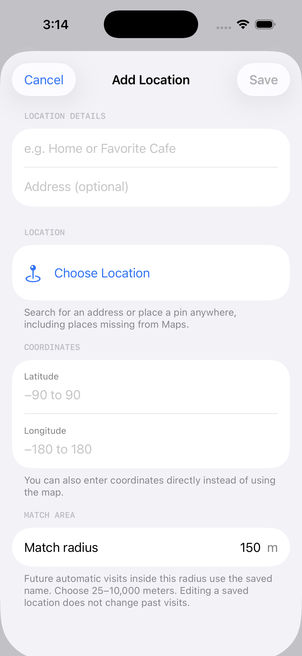
The editor opened with location permission denied in an isolated Debug simulator rebuild of release 1.7.16, iOS 26.5, checked October 26, 2026. This confirms the available controls, not a completed save through this screen.
Direct coordinate entry does not require the phone’s current GPS position. Map search and map previews use Apple services; disabling Location names does not turn those interactive map services into an offline feature. See the network and storage reference.
Import saved locations from CSV
In Manage Locations, choose Import Locations from CSV. This is separate from the general Import File control for visit and route-point history. A locations CSV defines reusable places, not visits.
| Column | Requirement |
|---|---|
name | A nonempty location name. |
latitude | A finite number from −90 through 90. |
longitude | A finite number from −180 through 180. |
address | Optional. Quote values containing commas. |
radius_meters | Optional. Defaults to 150 when empty; otherwise use 25–10,000. |
Use UTF-8 CSV, up to 5 MB and 10,000 data rows. Review valid rows, invalid rows, and duplicates before importing. Invalid rows are skipped rather than repaired automatically.
- Keep existing locations skips matching locations.
- Update matching locations changes the reusable location’s values for future matching while keeping historical visits unchanged.
Matching considers the name and nearby position, using match radii. Name case and surrounding whitespace are ignored. Review the summary and pin instead of assuming that equal names or slightly different coordinates will always create separate entries.
Download the synthetic saved-locations CSV. Its two invented stops contain no personal history. Native tests against released 1.7.16 parsed and stored both, checked their coordinates and radii, then confirmed that a repeat import skips two under Keep existing and updates two under Update matching. The existing historical visit remained unchanged.
Those are parser and in-memory storage checks. The file-picker handoff and a complete on-device CSV import have not been newly verified here. Try a small test file and review the preview before importing your own locations.
Confirm or correct an existing visit
Open the visit from Map or Timeline. Confirm place accepts the detected place; correcting a name, address, or position records your chosen values. Arrival, departure, and notes can also be edited. Nearby business suggestions use Apple Maps around the visit’s coordinate.
Visits can be unconfirmed, confirmed, or corrected. Automatic geocoding does not overwrite a visit that is protected by its confirmation or correction state. Undo correction restores the original detected place information. Confirming or correcting a visit can also save reusable place knowledge; that is different from editing a saved location without changing a past visit.
Add a missing past visit
On the Map tab, open + and choose Add past visit. Select the location explicitly by search, pin, or saved place, then enter the arrival and departure times. Past visits do not silently use the phone’s current position when a location is missing.
The same menu offers Save current place and Add place manually for other entry tasks. Current-position workflows depend on location access; choosing a known past place is a different task. A manual entry records what you enter. It cannot recreate missing GPS points or prove an automatic visit occurred.
For a gap in recorded history, use the missing visits and routes checklist. Keep a separate backup before making extensive journal edits.
Optional current-place suggestions
Settings → Map display → Visit suggestions is off by default. When enabled, a nearby saved place or business can be offered as a Save Place prompt. This does not replace tracking permission or guarantee that every stop becomes a detected visit.
Reviewed October 26, 2026 against released Whereday 1.7.16. The editor screenshot and native fixture tests have the limits described above; no new physical route or visit-detection test is claimed.